Blog Backup Strategy: Protect Your Site and Drafts
Your hosting account may contain yesterday’s website. Your laptop may contain tomorrow’s article. If either disappears, can you recover the work without rebuilding it from memory?
A useful blog backup strategy protects three things: the WordPress site, the unpublished content behind it, and the instructions needed to restore both. Start with automatic site backups stored away from your web server, a separate backup of working files, and a small recovery rehearsal.
For a solo blogger publishing several times a week, that is a more useful starting point than buying another drive and hoping to remember it. The plan below gives each copy a purpose and each check a place in your publishing routine.
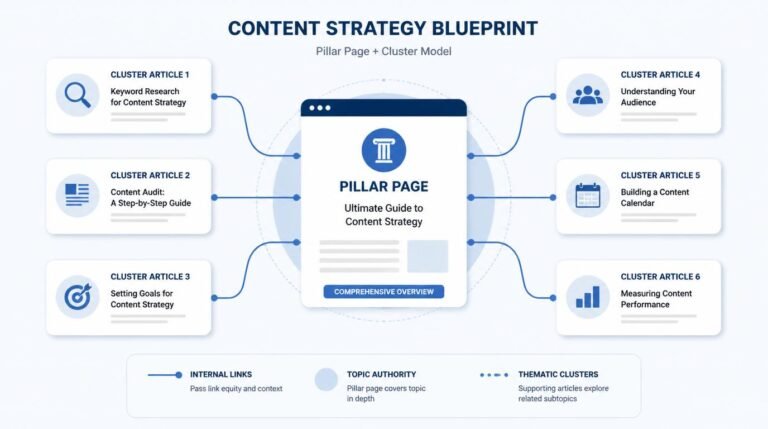
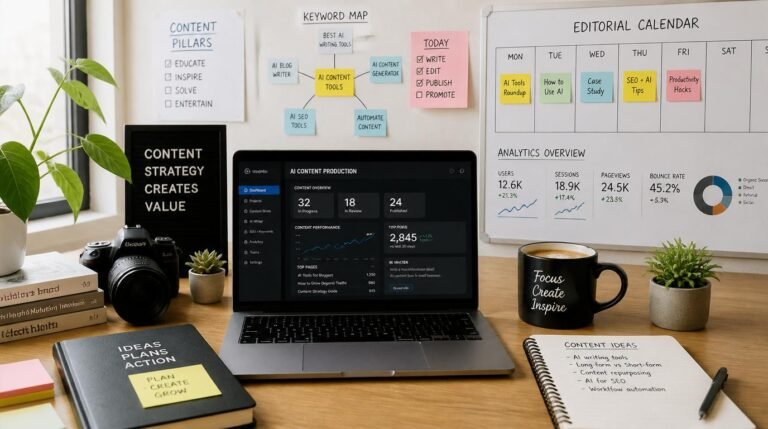
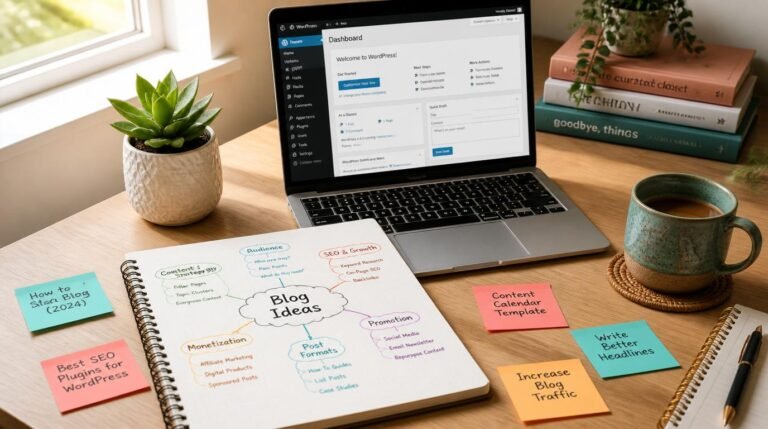
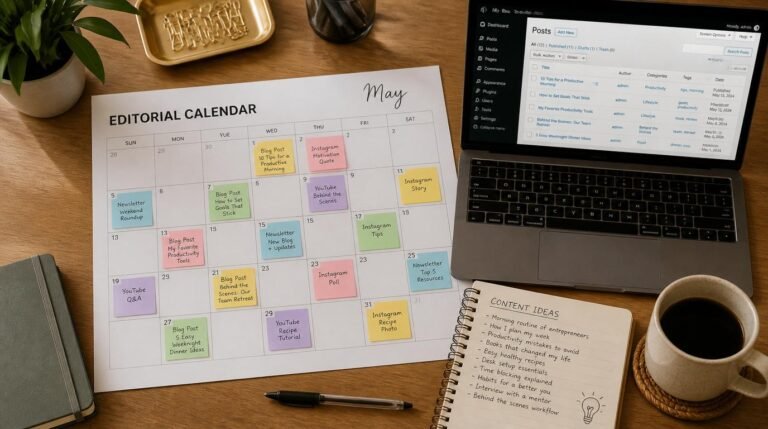
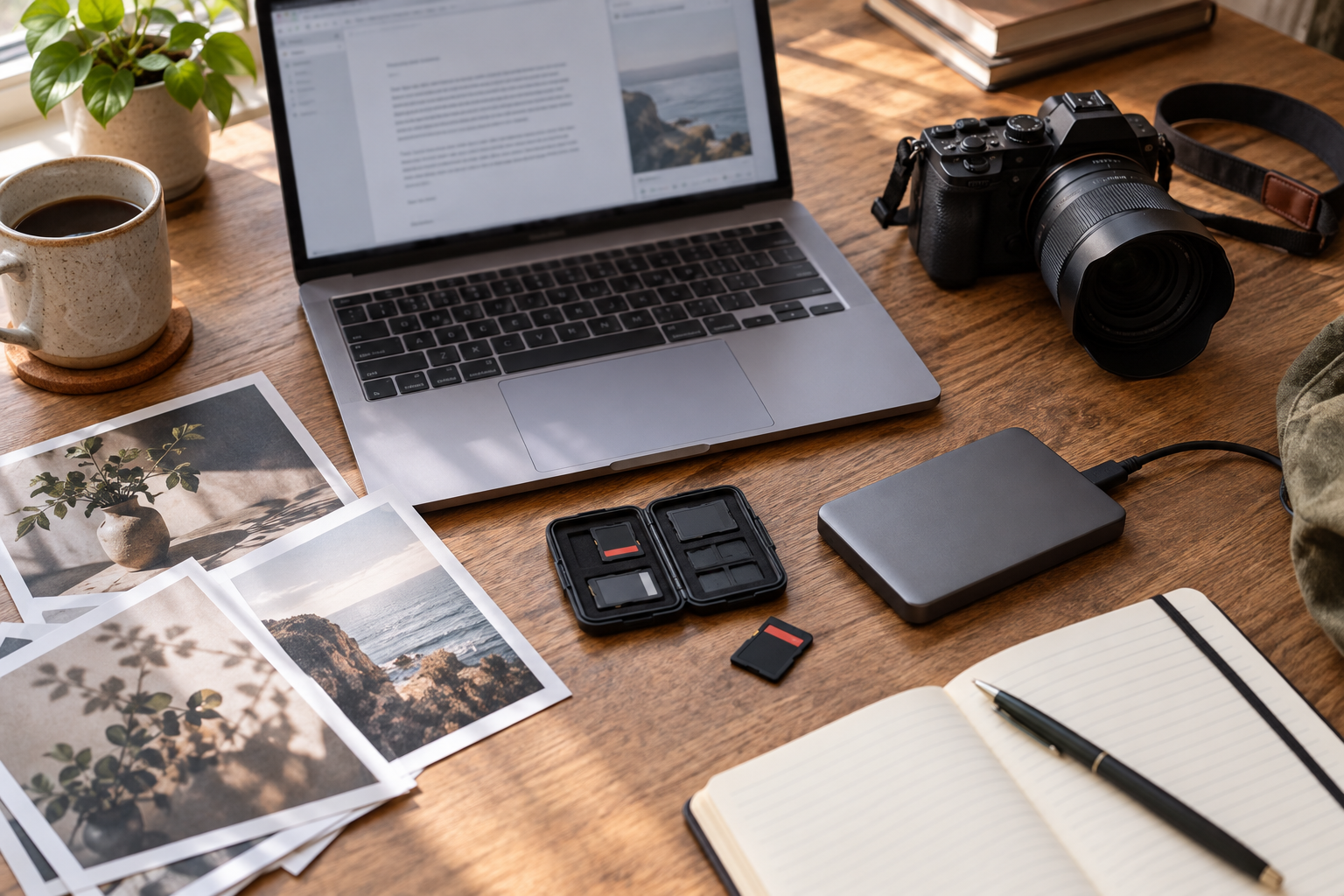
Illustration note: The images in this guide are AI-generated examples of backup workspaces and recovery planning. They do not document product testing or a successful site restoration.
Table of Contents
Define what your blog backup strategy must recover
Write down the most recent work you could afford to lose and how long you could tolerate being offline. These are planning decisions, not promises that a particular tool will meet them.
For example, losing one day’s minor edits may be manageable. Losing four finished drafts and their original photographs may mean missing a week of publishing. List those consequences before choosing a schedule.
If you are following a blog-building plan, add recovery to the operating tasks alongside writing and promotion. A backup deserves a named owner even when that owner is simply you.
Make a short asset inventory
Create one page listing these groups:
- Website: database, uploads, themes, plugins, configuration, and any files stored outside the usual WordPress folders.
- Editorial work: draft documents, outlines, research notes, source photographs, graphics, and downloadable resources.
- Recovery information: hosting provider, backup locations, restoration instructions, and support contact details.
- Connected services: newsletter, domain registration, analytics, and other accounts that have their own recovery or export processes.
Do not place passwords in this inventory. Record where the recovery information is securely stored and confirm you can access it without the affected website.
Back up WordPress and your working files separately
The official WordPress backup documentation explains that a complete site recovery needs both files and the database. Posts and settings in the database do not replace uploaded images or theme files.
Ask your host exactly what its backup includes, how long copies remain available, whether restoration costs extra, and what happens if you cannot enter the WordPress dashboard. Record the answers for your actual plan.
A second copy under your control reduces dependence on that single account. Check that the chosen method exports everything your site needs; custom setups may require additional folders or databases.
Keep unpublished assets together
Use one project folder per article. Give it a readable name such as “2026-10-backup-guide,” then separate drafts, sources, originals, and web exports. Keep the final text alongside the version actually uploaded.
Original media deserves particular attention. The workflow for product photos for affiliate reviews includes retaining untouched originals. Those files may never reach WordPress, so a website backup cannot recover them.
Avoid leaving the only copy in a downloads folder, on a phone, or inside an editor with uncertain offline access. Move important work into the location your backup process actually covers.
Build copies that can survive different failures
The familiar 3-2-1 approach means three copies of important data, with storage diversity and one copy offsite. Backblaze’s explanation illustrates a working computer, an external drive, and a cloud backup as a practical arrangement.
Use that as a starting design. The important question is whether one event can remove every copy.
Three folders on one laptop do not protect against losing the laptop. A backup archive on the same web server may disappear with the hosting account. Two drives in the same bag share a theft risk.
For editorial files, a practical arrangement is the working folder, a versioned backup on an external drive, and a separate offsite backup. For WordPress, map the live installation, a recoverable backup set, and a separate retained copy you can reach if the host is unavailable.
Check deletion and access behavior
Synchronization is useful for working across devices. It can also propagate deletion or unwanted edits. Check the service’s version history, deleted-file recovery period, and whether those protections cover your files.
An offsite copy is not automatically offline. If compromised credentials can erase both your website and its backups, geographic separation alone will not solve the problem.
CISA’s ransomware guidance recommends offline, encrypted backups and regular recovery testing. For a solo blogger, a disconnected external copy is one useful layer. Protect it physically and keep any encryption recovery information separately accessible.
Choose a schedule around the work you create
Set frequency from acceptable data loss. A weekly backup taken before four new posts are written may leave all four outside the recovery window.
Here is a proposed starting schedule for a small editorial blog. Adapt it to your host, storage limits, and actual rate of change.
| Material or task | Starting cadence | What to verify |
|---|---|---|
| WordPress database | Daily while actively editing | Latest expected draft or edit is present |
| Site files and uploads | Daily when uploading frequently | Recent images and necessary folders are included |
| Unpublished working files | After each substantial work session | New documents and originals reached the backup |
| Extra site snapshot | Before updates or major changes | A complete usable recovery point exists |
| Backup review | Weekly | Recent jobs completed and storage has room |
| Recovery rehearsal | Monthly initially; after major changes | A usable site and a selected draft can be recovered |
These are editorial recommendations, not universal technical requirements. A busy store or membership site needs a plan for transactions and user activity that goes beyond this example.
Retain enough history to notice a problem
The newest backup may already contain an unnoticed error. Keep multiple dated versions rather than repeatedly replacing one archive.
As a planning example, retain daily recovery points for two weeks and several older weekly copies if capacity permits. This is not a guarantee that two weeks will cover every incident. Increase the window when errors are often discovered late.
Full, incremental, and deduplicated backups consume storage differently. Measure actual usage after the first few runs, then check whether retention works as expected. Do not assume that ten recovery points require exactly ten times your site’s current size.
If using UpdraftPlus, its current scheduling guide explains separate file and database schedules. Confirm the options in your installed version and check completion afterward.
Add an export without confusing it with a full backup
WordPress Tools → Export creates a WXR XML file containing selected content and related data. The WordPress export documentation also shows status filters, which matter when you want unpublished posts included.
An export can be a useful extra route for recovering editorial text or moving content. It does not replace a complete backup of the database and site files.
Choose “All content,” or carefully check filters for the material you need. Open the downloaded XML in a suitable text editor and look for a distinctive sentence from a recent draft. Keep original media separately.
Treat this as a supplementary recovery layer. A file existing in your downloads folder does not establish that a complete site can be restored.
Watch a backup and restore walkthrough
WP Wiki – Digital Web Tutor’s UpdraftPlus walkthrough demonstrates configuration, a manual backup around 3:58, and restoration around 4:42. It helps visualize how those stages connect.
The video was published in June 2022, so interface details may differ. Its weekly example is not a suitable default for every publishing schedule. Rehearse restoration on an isolated test site; do not repeat its deliberate deletion demonstration on your live blog.
Choose storage for a defined job
Use equipment you already own if it has sufficient capacity and works reliably with your backup method. The following are researched options, not products tested for this article.
Affiliate disclosure: This article contains affiliate links, and MakeMoneyQ may earn a commission from qualifying purchases. As an Amazon Associate I earn from qualifying purchases.
Samsung T7 portable SSD, 1TB
This compact external SSD suits a blogger regularly copying working drafts and larger original media files. Its role here is a convenient local backup destination.
Check available capacity against your files and retained versions, plus compatibility with your computer, cable, and backup software. A portable SSD left attached to the same computer is not an independent offsite solution.
View the Samsung T7 1TB on Amazon.
WD Elements portable external hard drive, 2TB
This drive suits a planned periodic copy of a larger editorial archive when portability matters less than having a separate storage destination.
Check the selected variant and operating-system formatting requirements before use. Reformatting erases existing data, so never experiment with your only copy. Like any drive, it can fail; it should not become the archive’s sole home.
View the WD Elements 2TB on Amazon.
Choose one appropriate destination first. Buying both does not solve missing automation or untested recovery. Apply the same needs-first approach when reviewing your wider blogging tool stack.

Rehearse recovery before you need it
A successful backup notification is useful. A completed recovery exercise answers a different question: can you actually use the saved work?
Use a private, access-restricted test environment with your host’s guidance. Prevent test copies from sending newsletters, order messages, or other automated communications. Keep them out of public search and avoid exposing private drafts.
Work through this checklist:
- Locate a dated backup without relying on the live WordPress dashboard.
- Follow the documented restoration process on the test environment.
- Open the homepage and two representative articles.
- Check images, navigation, one form, and an unpublished draft.
- Recover a separate working document and original photograph.
- Record the backup date, elapsed recovery time, missing items, and next fix.
Do not overwrite the live site simply to prove restoration works. During a real incident, preserve newer valid work before rolling back, and involve your host if compromise or malware is suspected.
Write a short recovery card
Record the first action, backup location, restoration method, support contact, and last successful rehearsal date. Store an accessible copy away from the site.
Then add a weekly reminder to your content and blogging routine: check the latest backup, inspect one recent asset, and resolve failures. Start this week with one complete recovery point and one recovered draft. Expand the system after those basics work.
Frequently asked questions
How often should I back up a blog?
Base the interval on how much recent work you can afford to lose. Daily site backups are a reasonable starting point for an actively edited blog, with working files backed up after substantial sessions.
Is my hosting provider’s backup enough?
Check its scope, retention, access, and restoration conditions. Keep a separate recoverable copy when losing the hosting account would also remove your only backup.
Does WordPress Export include drafts?
Its post export offers a status filter. Choose the appropriate status or all statuses, then verify that a known recent draft appears in the exported file.
Is cloud sync the same as backup?
Not necessarily. Sync may propagate deletion or bad edits. Check version history and recovery limits, and retain a separate backup that protects against your identified failures.
Do I need both an SSD and a hard drive?
No. Choose storage around capacity, compatibility, and your workflow. Multiple useful recovery copies matter more than owning two particular products.
How can I know whether a backup works?
Restore it in an isolated test environment and inspect representative content, images, and drafts. Also recover a working file. Record what succeeded and fix gaps before relying on the process.