
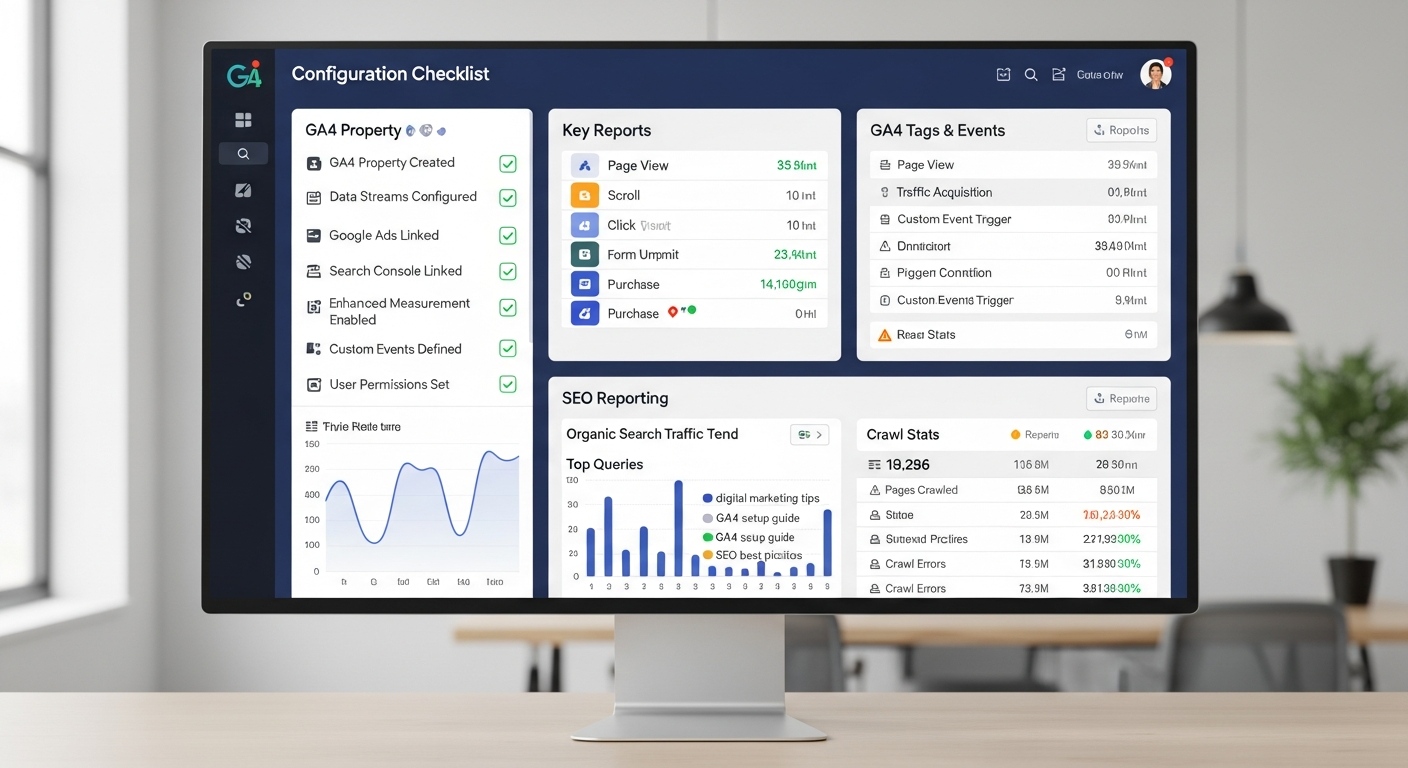
GA4 + Search Console Configuration Checklist for Clean SEO
GA4 + Search Console configuration checklist sounds boring until you realize your reports are quietly lying to your face. The problem is most setups “work” just enough to make you trust them… while they leak attribution, miss conversions, and turn SEO reporting into interpretive dance.
Fast forward to the moment you need answers—what pages drive revenue, which queries convert, why paid looks “fine” but revenue doesn’t move—and you’re stuck debugging a tracking stack that was never hardened in the first place.
Table of Contents
- Why your data is lying (and how to prove it)
- Pre-flight: access, ownership, and ground rules
- GA4 configuration checklist that actually holds up
- Search Console configuration checklist for real SEO reporting
- Linking GA4 and Search Console without making a mess
- QA & debug checklist: trust, but verify
- Mistakes that wreck reporting (seen them all)
- Frequently Asked Questions
- Tools & recommendations
- Bottom line
Why your data is lying (and how to prove it)
This checklist exists because “installed” is not the same as “correct.” The fastest way to lose money in marketing is to optimize based on broken measurement. GA4 can track events beautifully while mis-attributing sessions, and Search Console can show “wins” while your landing pages bleed conversions.
Snippet answer: Configure GA4 and Search Console by locking down ownership, filtering junk traffic, aligning domains, validating conversions, and linking products so SEO queries can be tied to on-site outcomes. Then QA with DebugView, Realtime, GSC indexing/sitemaps, and a repeatable audit so the data stays sane.
Here’s the truth: most teams don’t have a tracking problem. They have a discipline problem. The stack is half-configured, nobody owns the checklist, and the first person who notices the numbers are off is… the person presenting to the client.
If you want a broader SEO/traffic ops playbook that complements this setup, weave this into your workflow: traffic and SEO execution frameworks that don’t waste months.
Also, the “proof” part matters. GA4 publishes rules for cross-domain measurement and data retention—read them, then check your own settings. Cross-domain measurement is documented by Google here: GA4 cross-domain measurement (Analytics Help). Data retention settings are here: GA4 data retention (Analytics Help). And if you’re thinking server-side tagging, Google’s developer docs cover the basics: Server-side Tag Manager overview.
Pre-flight: access, ownership, and ground rules
Before you touch settings, lock down who can break things. Analytics accounts get messy because access is handed out like candy, then nobody remembers who changed what.
- Confirm admin access to GA4 property and Search Console property (don’t assume).
- Decide the canonical domain (www vs non-www, HTTP vs HTTPS). One truth. Everything else redirects.
- Document your measurement plan: key events, conversions, and what counts as a lead/sale. If you can’t write it down, you can’t measure it.
- Standardize UTMs: source/medium/campaign naming conventions. If you’re inconsistent, you’re buying confusion.
- Pick one tag deployment method: ideally Google Tag Manager, not a Frankenstein mix of plugins + manual scripts + “my dev added something once.”
Quick reality check: Search Console’s Performance report generally gives you about 16 months of history. That’s not a conspiracy—just a limit you plan around. Google support staff have reiterated this retention behavior in Search Console community threads (and yep, it bites): Search Console Performance data retention discussion.
Want to stop losing history? Export a monthly snapshot. You don’t need fancy tooling—just consistency. And if you’re already building a traffic system, plug this step into your cadence: the traffic/SEO workflow that keeps reporting from drifting.
GA4 configuration checklist that actually holds up
GA4 is powerful, but it’s also very easy to “set and forget” into uselessness. This checklist is the minimum viable hardening so your future self doesn’t hate you.
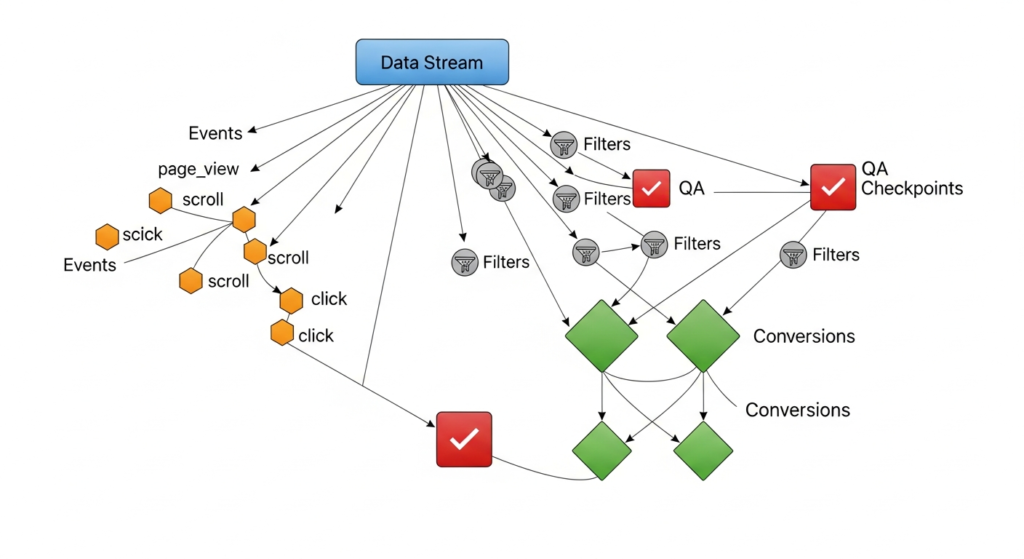
1) Data stream sanity
- Verify the correct web stream is installed on every template (not just the homepage).
- Check Enhanced Measurement: keep what you use, disable what creates junk. Scroll tracking can be noise if you never act on it.
- Confirm referral exclusions for payment processors and identity providers (Stripe, PayPal, Auth0, etc.). If you don’t, you’ll see self-referrals and “new sessions” mid-checkout.
2) Filters that remove trash (without deleting truth)
- Define internal traffic (office IPs, dev teams, agencies). Use a dedicated rule. Then test it.
- Use data filters carefully: start with “Testing” mode before you flip to “Active.” Bad filters don’t just hide data—they erase confidence.
3) Cross-domain measurement (when you actually need it)
- List the domains in the same user journey (main site, checkout domain, booking engine, landing domain).
- Configure cross-domain measurement in GA4 admin so client IDs don’t reset and attribution doesn’t explode.
- Validate with a live journey: click from Domain A to Domain B and confirm you didn’t generate a new session or self-referral.
Google’s docs are clear on the why and the how. If your reports show your own domain as a top referrer, that’s not “normal,” that’s a setup problem: GA4 cross-domain measurement.
4) Conversions: stop counting vibes
- Define key events (formerly “conversions”) that map to actual business outcomes: lead submitted, purchase, qualified call booked.
- Deduplicate: if a form fires on reload, you’re inflating performance and training yourself to make bad decisions.
- Set conversion windows intentionally (especially if you run paid). If you don’t know what you’re using, you’re not measuring—just collecting.
5) Data retention and privacy controls (the unsexy stuff that matters)
- Set GA4 data retention to match your analysis needs (Explorations rely on this window). GA4 supports 2 or 14 months for many properties; don’t leave it on the shortest setting unless you enjoy short-term memory. Reference: GA4 data retention settings.
- Audit consent and privacy (especially EU). If your consent banner blocks tags, your “traffic drop” might be compliance doing its job.
- Decide if server-side tagging is worth it. It can improve control and data quality, but it’s not a magic wand and it adds ops overhead. Google’s developer overview is a solid starting point: server-side Tag Manager.
One more thing: if you’re running SEO + content, GA4 is only half the story. Tie this into your broader growth loop so the reporting actually drives decisions: a traffic & SEO system built for outcomes.
Search Console configuration checklist for real SEO reporting
Search Console is brutally honest—if you set it up correctly. If not, you’ll miss indexation issues, chase the wrong pages, and wonder why “SEO traffic” doesn’t convert.
1) Property type: Domain vs URL-prefix
- Use a Domain property when possible (covers all protocols and subdomains). It reduces blind spots.
- Verify DNS properly. If DNS verification scares you, you probably also hate debugging canonical issues. Learn it once.
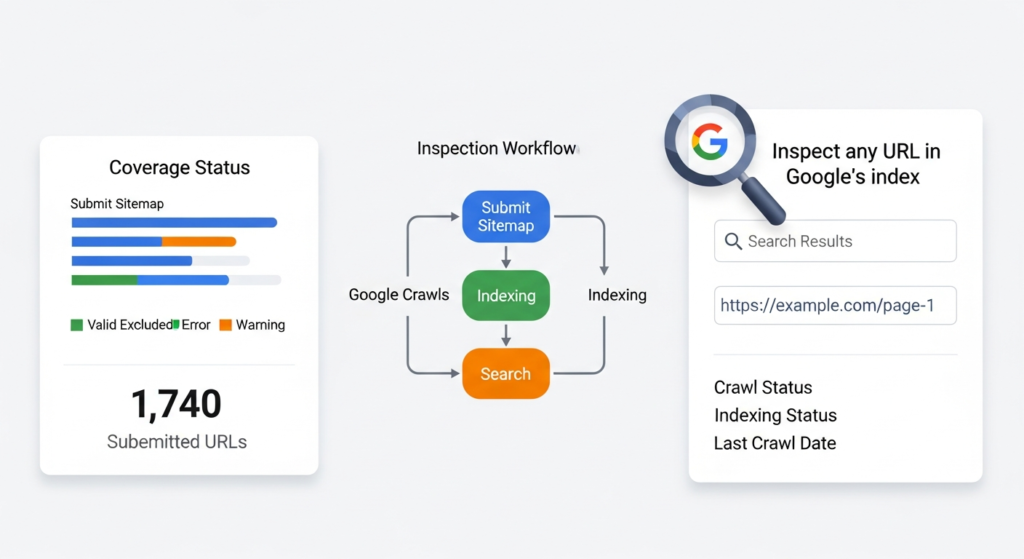
2) Sitemap discipline (yes, you need it)
- Submit your sitemap and check that it’s actually being processed.
- Fix sitemap errors immediately: “Submitted URL blocked by robots.txt” is not a suggestion.
- Segment large sites with multiple sitemaps (posts, pages, categories). It makes debugging faster.
3) Indexing hygiene
- Use URL Inspection on priority pages (money pages, category hubs, top content) and verify Google sees what users see.
- Check canonical and robots: if Google’s chosen canonical isn’t yours, you don’t have a “ranking problem,” you have a technical problem.
- Monitor manual actions and security issues. Rare, but catastrophic when they hit.
4) Performance report setup that doesn’t mislead you
- Create saved comparisons: brand vs non-brand, country segments, device segments.
- Track query groups tied to your conversion intent (commercial, informational, navigational). Rankings without outcomes are just ego.
- Export a monthly snapshot so you don’t lose history beyond the platform window (commonly ~16 months).
Linking GA4 and Search Console without making a mess
This is where most people mess up the story. GA4 explains what users do on your site. Search Console explains how they got there from Google Search. Linking them won’t magically make the numbers identical, but it will let you connect intent (queries) to outcomes (engagement and conversions) in one workflow.
- Confirm you’re linking the correct Search Console property (domain property preferred if that’s your real footprint).
- In GA4 Admin, use Product Links to connect Search Console. (If you link the wrong property, you’ll spend weeks arguing with your own dashboards.)
- Validate access permissions: the GA4 user needs appropriate Search Console permissions, not “someone else on the team has it.”
- Give it time to populate and then sanity-check landing page trends vs GSC performance pages. Directional alignment is the goal.
If you’re building content clusters and money pages, this link is how you stop optimizing for “clicks” and start optimizing for the queries that produce outcomes. Pair it with your operating system here: traffic + SEO priorities that keep you revenue-focused.
QA & debug checklist: trust, but verify
Configuration without QA is just hope with extra steps. Here’s how you prove the stack is telling the truth.
GA4 QA
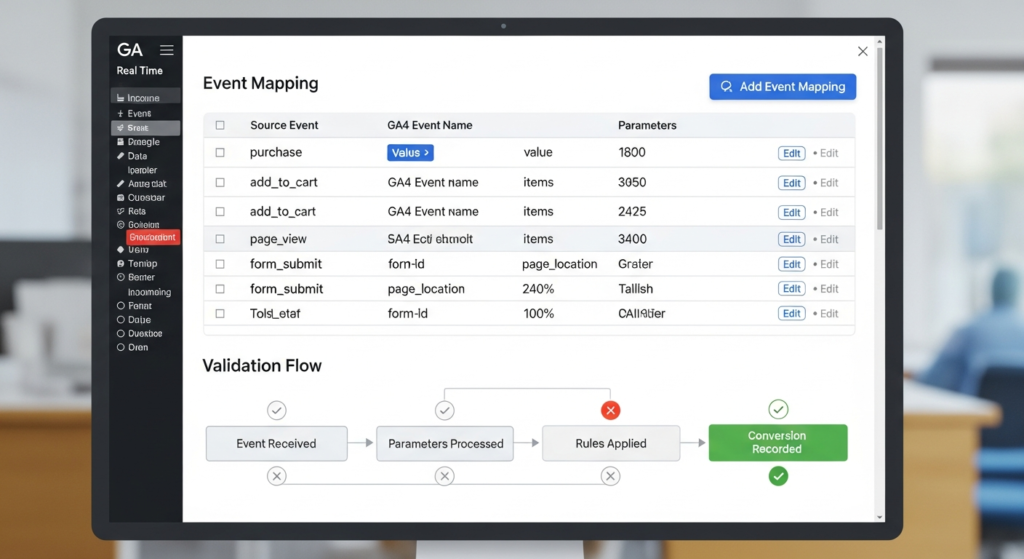
- Realtime check: trigger key actions (form submit, add to cart, purchase test) and see events appear immediately.
- DebugView (especially via GTM Preview): confirm event names, parameters, and that conversions only fire once per action.
- Attribution sanity: check your top referrers. If you see your own domain or payment domains in the wrong place, fix referral exclusions/cross-domain.
- Explorations window: verify you’re not accidentally analyzing only 2 months because retention was never adjusted (Google documents retention choices here: GA4 data retention).
Search Console QA
- Sitemap status: submitted and processed, not “couldn’t fetch.”
- Coverage signals: watch for spikes in “Excluded” reasons that correlate with site changes.
- URL Inspection spot checks: confirm Google’s rendered output matches reality, especially after theme/plugin changes.
- Performance filters: verify brand/non-brand and country/device slices behave logically. If your brand terms vanished overnight, don’t panic—check filters and property selection first.
Mistakes that wreck reporting (seen them all)
If any of these sound familiar, congrats: you’re normal. Now fix it.
- Counting micro-events as conversions (scroll, click, “viewed page”) and then wondering why revenue doesn’t track. That’s not measurement; that’s self-sabotage.
- Letting plugins fire duplicate tags. One GA4 tag is enough. Two is a migraine.
- Ignoring self-referrals. If your checkout is on another domain and you didn’t set cross-domain measurement, your attribution is broken by design.
- Never exporting Search Console history, then trying to do multi-year SEO strategy with 16 months of data. That’s like planning retirement with one paycheck stub.
- No ownership. If nobody owns the tracking checklist, the checklist owns you.
Frequently Asked Questions
Why don’t GA4 and Search Console numbers match?
Because they measure different realities. GA4 is event-based and can include modeled/processed behaviors, while Search Console reports Google Search clicks/impressions with its own processing rules. Expect trend alignment, not identical totals.
How long does GA4 keep data in Explorations?
Depending on settings, GA4 retention for the data used in Explorations can be 2 or 14 months for many properties, with longer options for GA360. If you never changed it, you might be analyzing a short slice and calling it “the market.” Reference: GA4 data retention.
How long does Search Console keep Performance report data?
Commonly around 16 months in the Performance report. Plan exports if you want year-over-year beyond that window. Google support discussions reinforce this limitation: Search Console data retention thread.
Do I need cross-domain measurement in GA4?
If users move between separate domains during one journey (checkout, booking engine, auth), yes. Without it, you’ll see session breaks and self-referrals. Start here: GA4 cross-domain measurement.
Should I use server-side tagging for GA4?
Only if you can operate it. It can improve control and data quality, but it adds infrastructure and maintenance. If your current mess is inconsistent UTMs and duplicate events, fix the basics first. Google’s overview: Server-side Tag Manager.
Tools & recommendations
You don’t need more tools. You need fewer tools used correctly. That said, a couple things are genuinely helpful when you’re implementing (or cleaning up) GA4 + Search Console like an adult.
Practical references (books / guides)
Google Analytics 4 handbook / reference guide (useful when you’re defining events, conversions, and troubleshooting weird reporting).
Google Tag Manager reference (because most GA4 “issues” are really tag deployment issues).
Looker Studio dashboard templates (not required, but helpful for weekly ops and stakeholder reporting).
Bottom line
The setup isn’t “done” when tags fire. It’s done when you can trace a real user journey from query → landing page → key event, and you trust the story enough to make budget decisions.
Run this checklist quarterly, and every time you change themes, checkout flows, domains, or consent tools. Your future self will thank you. Your clients will stop asking why the numbers changed “for no reason.”
Now go make your analytics boring again—the good kind of boring. I’ll take “predictable reporting” over “mysterious spikes” every day of the week.
As an Amazon Associate, I earn from qualifying purchases.




3 Comments
Comments are closed.